Start troubleshooting with Astricode Ops → Diagnostics and Astricode Ops → Logs.
Avoid changing internal plugin options manually to make a warning disappear.
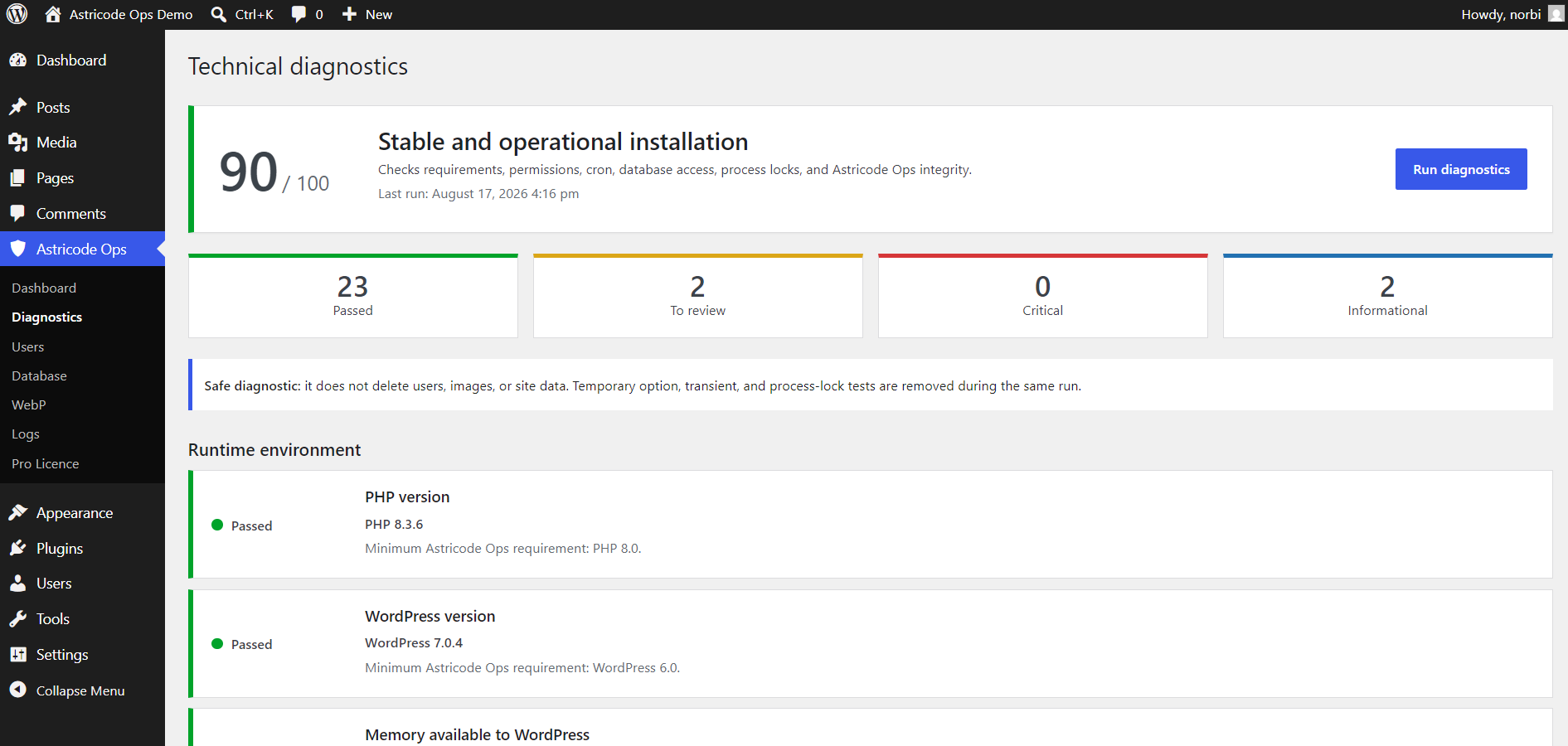
Diagnostics reports low WordPress memory
Astricode Ops can report insufficient memory as a serious runtime problem.
Check the memory available to WordPress and your PHP configuration.
A practical operational target is at least 128 MB for comfortable maintenance work, although your site may need more.
Maximum execution time is under 60 seconds
Bounded batches reduce long-running work, but Diagnostics recommends a 60-second limit for heavier operations.
If your hosting environment allows it, configure the value for the relevant PHP runtime or site pool rather than changing unrelated sites globally.
Historical upload directory is not writable
WebP processing can fail even when the main uploads directory is writable if an older subdirectory has incorrect ownership or permissions.
Check the exact directory reported by Diagnostics.
Correct ownership and permissions according to your hosting model. Do not blindly apply recursive permissions across the entire WordPress installation.
WP-Cron execution shows “Internal WP-Cron disabled”
This is a review item, not automatically a failure.
If DISABLE_WP_CRON is enabled intentionally, confirm that the server runs WordPress cron externally.
If no external scheduler exists, scheduled Pro automation will not run reliably.
Internal migrations shows a review item
Do not edit architecture or schema options manually.
Confirm:
- installed Astricode Ops version;
- that the plugin upgrade completed normally;
- that the site is running the intended release.
If the site remains operational and the item is only a review warning, collect the Diagnostics details before making changes.
Pro plugin is active but Pro features are unavailable
Check in this order:
- Astricode Ops Free is active.
- Astricode Ops Pro is active.
- Free and Pro versions are compatible.
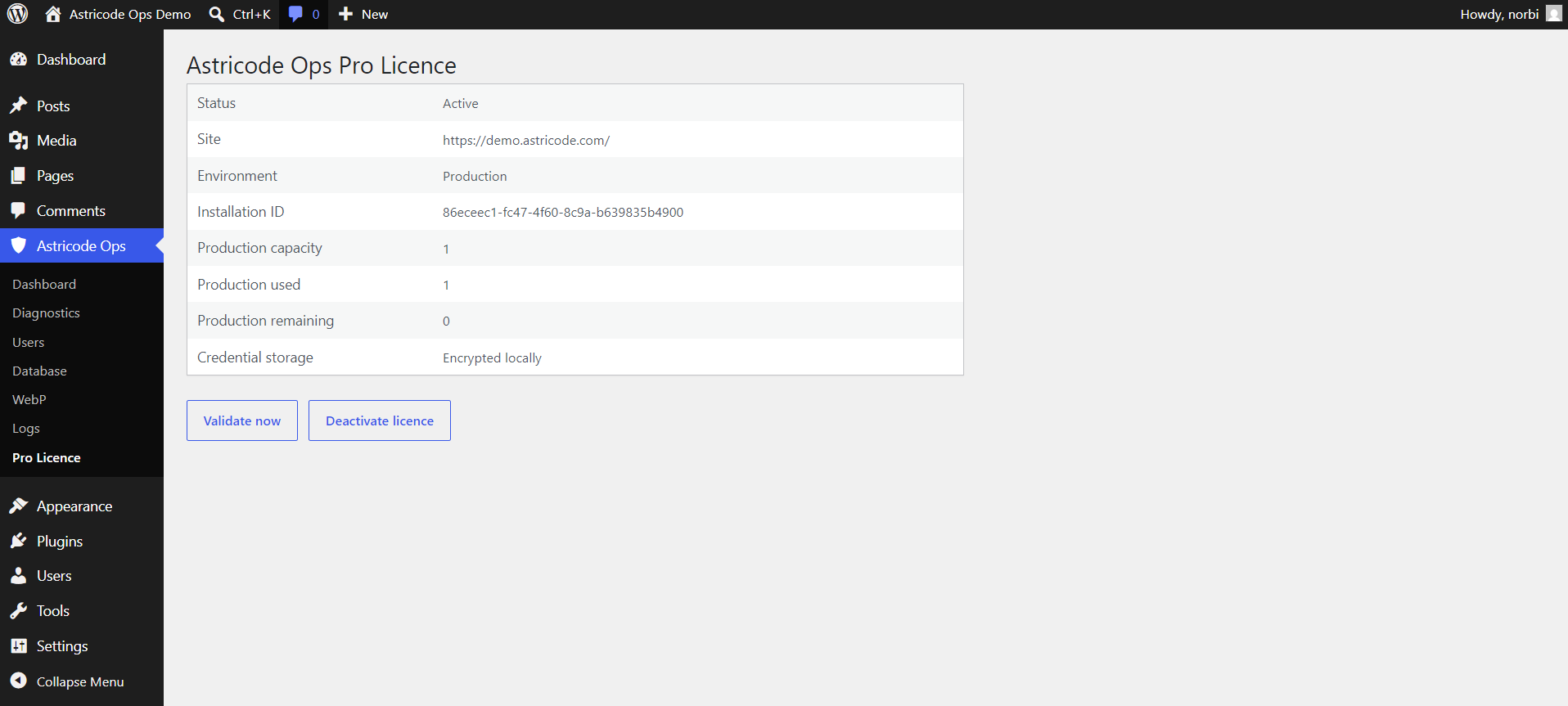
- Pro Licence status is Active.
- Select Validate now.
- Run Technical Diagnostics.
- Review Logs.
An inactive licence prevents Pro modules from being allowed to boot. Do not bypass this by editing the stored licence state.
Automatic cleanup or WebP is paused
Paused is a valid state.
If you want automation:
- review the batch settings;
- enable the automation;
- confirm a next run is scheduled;
- ensure WordPress cron or external cron is functioning.
If you only want one execution, use Run Now and leave recurring automation paused.
WebP conversion is unavailable
Check Server Compatibility under WebP.
At least one supported image editor must be able to generate WebP. Astricode Ops can use GD or Imagick depending on server support.
If conversion is available through GD, Imagick support is not required.
WebP coverage is below 100%
Review:
- pending files;
- files not found;
- server compatibility;
- historical directory permissions;
- Logs for failed files.
Run a bounded manual batch before enabling Pro automation.
Database table is “Unknown origin”
Do not quarantine it solely because it is unknown.
The Plugin Table Inspector intentionally treats unknown ownership cautiously.
Investigate the table first. Quarantine is intended for supported cases where ownership and plugin state provide enough confidence.
Large option is shown in wp_options
A large option is not automatically junk.
Inspect:
- origin;
- status;
- autoload state;
- preview;
- whether the option is protected.
Export and protect important data before considering reversible quarantine.
Revisions are detected
Revisions can be useful for restoring previous content versions.
Clean them only when your backup and editorial requirements allow it.
Before every destructive maintenance session
Use this checklist:
- Create a current database backup.
- Run analysis first.
- Protect known legitimate users or data.
- Start with bounded batches.
- Read the confirmation text.
- Prefer reversible quarantine for supported uncertain data.
- Review Logs after the operation.
- Refresh analysis and health.
- Run Technical Diagnostics if the environment changed.
- Keep an independent backup even when quarantine is available.
When asking for support
Collect:
- Astricode Ops version;
- Astricode Ops Pro version, if installed;
- WordPress version;
- PHP version;
- Diagnostics score and non-passing checks;
- relevant Logs;
- the operation you were performing.
Do not include plaintext licence keys, passwords, API secrets or complete sensitive option exports in public support messages.